Add2Exchange Enterprise Contact Configuration Tips and Troubleshooting
Technical guidance for contact visibility, mobile configuration, duplicates, and support triage.
1. Purpose and Scope
Use this guide when Contact folders are not appearing as expected, Contacts are missing on mobile devices, or duplicate Contacts are being introduced by mobile or cloud synchronization settings.
- Applies to Add2Exchange and Add2Outlook Contact synchronization scenarios.
- Focuses on iPhone, Outlook for iOS, and common mobile configuration issues.
- Highlights settings that commonly interfere with corporate Contact visibility or introduce duplicates.
|
Check
|
What to confirm
|
Why it matters
|
|
Work account present
|
Confirm the user has a work Exchange / Microsoft 365 account configured on the phone.
|
If the work account is not present, Contacts and folders from the mailbox will not be available to the device.
|
|
Contacts enabled
|
For the work account, verify Contact synchronization is enabled in the phone account settings or in Outlook for iOS.
|
A correct relationship in Add2Exchange will still look missing on the phone if Contact sync is disabled locally.
|
|
Groups selected
|
In the iPhone Contacts app, open Groups and select the folders or groups that should be visible.
|
The data may already be on the device but hidden because the relevant groups are not selected.
|
|
iCloud / Google overlap removed
|
Turn off iCloud or Google Contact sync for users who are part of the corporate sync workflow unless specifically required.
|
Parallel sync sources are a frequent cause of duplicates, overwrites, and user confusion.
|
|
Source relationship valid
|
If a Contact is expected to sync from a source folder, confirm there is a direct relationship from that source to each destination.
|
The item must originate in the source folder that is actually being replicated.
|
3. Native iPhone / iPad Contact Configuration
Recommended checks
1. Create or confirm the user's work Email account on the phone.
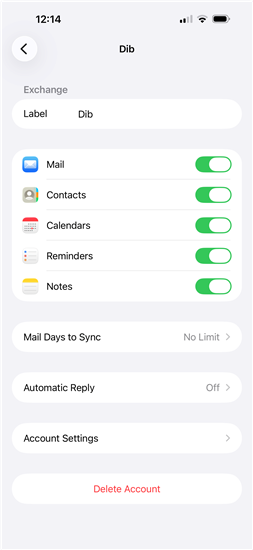
2. Open the work account settings on the device and confirm Contacts are enabled for that Exchange / Microsoft 365 profile.
3. If Contacts still do not appear, open the Contacts app, tap Groups, and select the appropriate Exchange folders or groups.
4. If the organization does not want iCloud influencing corporate Contact data, turn off iCloud Contact sync on the phone.
On the phone: Turn on Contacts sync in the Settings\Mail\Accounts for your corporate mail account:
Next, go to the Contacts app on your phone, with the left arrow at the top left and you will see all the folders and numbers of contacts:
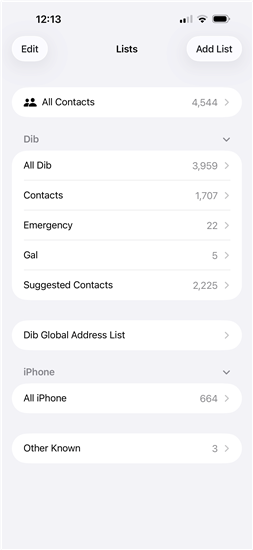
Sometimes duplicates can be caused by ICloud. If you turn off ICloud, and select to remove the contacts from the phone, the duplicates dissappear.
Then, by cleaning up Icloud contacts, this can assist removing duplicates before turning the service back on again. There should be no company contacts
|
Tip: When prompted after turning off iCloud Contact sync, select Remove iCloud data from the phone so the handset stops presenting a second copy of the same data set.
|
|

|

|
|
Turn off iCloud Contact sync when it should not participate in the corporate workflow.
|
In Contacts > Groups, select the Exchange folders that should be visible on the phone.
|
4. Outlook for iOS Contact Configuration
When users rely on Outlook for iOS, the app can save mailbox Contacts down to the iPhone so they are visible in the native Contacts app for calling, lookup, and related device features.
1. Open Outlook on the iPhone.
2. Tap the profile icon, then open Settings.
3. Select the user's Outlook / Microsoft 365 account.
4. Turn Save Contacts on.
5. Approve the prompt to save Outlook Contacts to the iPhone or to the company's mail account, depending on the device configuration.
|

|

|
|
Open Outlook settings and choose the correct work account.
|
Enable Save Contacts so Outlook contacts are written to the phone.
|
5. Duplicate Contacts and Missing Contacts
Common causes of duplicates
- The same Contact data is being synchronized from more than one source, such as Exchange plus iCloud or Exchange plus Google.
- The user is viewing more than one contact group on the phone and assumes all entries belong to the same source.
- Outlook for iOS is saving Contacts to the phone while iCloud or another service is also maintaining a separate copy.
Common causes of missing Contacts
- The work account exists on the phone but Contact sync is turned off.
- The Contacts app is filtering out the relevant Exchange groups.
- The user expects a Contact to appear even though there is no direct relationship from the source folder to that destination.
|
Key Point: If synced folders are not visible on the handset, do not assume the sync failed first. Confirm account settings and group visibility before investigating the server-side relationship.
|
6. Security and BYOD Guidance
For organizations using BYOD policies, mobile configuration should balance usability with data protection. The source material recommends conditional access controls that require app protection policies when users access Office 365 services on personal devices.
- Avoid using iCloud to store or change corporate Contacts when that behavior conflicts with organizational policy.
- Review whether Outlook for iOS, the native Contacts app, or both should be used for each user group.
- Where appropriate, apply conditional access controls that require app protection policy for managed access patterns.
7. Contact Relationship Design Tip
For Contact sync items, create a direct relationship from the true source folder to each destination folder that should receive the item. This same principle appears in the source material for Calendar items and applies equally to Contact replication.
8. Reference Links